Embed Qlik analytics and Qlik Answers using qlik-embed and OAuth impersonation
Overview
This tutorial shows how to deploy analytics and AI into your solution with a seamless login experience for your users, even when your web app or portal does not have a backend identity provider for user authentication.
-
This tutorial is based on version v3.1.0 of the project repository.
-
This project is not production-ready. It is structured for learning and evaluating qlik-embed with a simple OAuth impersonation configuration.
-
For a production app:
- Review the guiding principles for OAuth impersonation as well as the documentation for qlik-embed and qlik/api.
- Use HTTPS rather than HTTP.
This project leverages qlik-embed, qlik/api, and OAuth machine-to-machine impersonation capabilities. It showcases several embedding techniques, such as:
- qlik-embed
classic/app: full sheet embed supporting the native experience. - qlik-embed
analytics/sheet: lightweight full sheet embed. - qlik-embed
classic/chart: load legacy charts in a similar manner toclassic/app. - qlik-embed
analytics/chart: lightweight charts in a similar manner toanalytics/sheet. - qlik-embed
analytics/charton-the-fly: lightweight charts generated on-the-fly (the chart doesn’t need to be in the Qlik Sense app, it is defined in the web app instead). - qlik-embed
ai/assistant: provides access to AI assistants in Qlik Answers. - qlik-embed
ai/agentic-assistant: provides access to agentic assistants in Qlik Answers. - qlik-embed
analytics/field: lightweight way to render a list box containing dimension values. - qlik-embed
analytics/selections: lightweight way to render a full Qlik Sense selections bar. - qlik-embed retrieval of hypercube data from an existing object.
- qlik/api retrieval of hypercube data without an existing qlik-embed object.
What you’ll learn
By the end of this step-by-step tutorial, you’ll have:
- Embedded Qlik Sense analytics into your solution using various qlik-embed techniques.
- Configured OAuth impersonation for a seamless user login experience.
- Deployed a working example of an embedded Qlik Sense app.
Prerequisites
- Node.js version 20 or higher.
- A backend OAuth M2M client with scopes
user_defaultandadmin_classic, and allowed origins set tohttp://localhost:3000. - A frontend OAuth M2M impersonation client with
scope
user_default, and allowed origins set tohttp://localhost:3000.
Step 1: Set up your local project
In this step, you’ll set up a local development environment by cloning the GitHub repository or downloading the project files.
Method 1: Clone the GitHub repository
Clone the GitHub repository using the git clone command.
git clone https://github.com/qlik-oss/qlik-cloud-embed-oauth-impersonation.gitMethod 2: Download and extract the project files
Alternatively, you can download and extract the project files.
- On the project’s GitHub page, click Code.
- Select Download ZIP.
- Extract the content of the ZIP file in the folder of your choice.
Step 2: Upload the demo Qlik Sense app
In this step, you’ll upload a demo Qlik Sense app that serves as the data source for the embedded analytics examples.
- Upload the demo Qlik Sense app to your tenant.
- Open the app and copy the ID (it will be a GUID similar to
946d5af4-e089-42d3-9ba7-1d21adb68472).NoteThe project files contain some hard-coded values for this demo Qlik Sense app.
- Move the app to a new
sharedspace. - Edit the space configuration to provide
Can viewaccess to anyone in the tenant.NoteIn a production deployment, ensure the logged-in user has access to the app.
Step 3 (optional): Create a Qlik Answers assistant
In this optional step, you’ll create a Qlik Answers assistant that allows users to interact with indexed knowledgebase content using natural language questions.
To use the agentic Qlik Answers experience, you must opt in to cross-region inference. This allows Qlik Cloud to temporarily process data outside your tenant region. For more information, see the Qlik Answers documentation on Qlik Help.
- Follow the Qlik Answers documentation on Qlik Help to set up a new knowledgebase and assistant, and index the knowledgebase data ready for users to ask questions.
- Provide
ViewandCan consume dataroles to all users in the tenant for the spaces containing the knowledgebase, assistant, and any data connections used by the knowledgebase.
Step 4: Set up environment variables
In this step, you’ll configure environment variables to securely store sensitive information and connect to required resources.
-
Rename the
template.envfile to.env. -
Edit the
.envfile with values that match your Qlik Cloud deployment.OAUTH_BACKEND_CLIENT_IDandOAUTH_BACKEND_CLIENT_SECRET: credentials for the backend OAuth M2M client.OAUTH_FRONTEND_CLIENT_IDandOAUTH_FRONTEND_CLIENT_SECRET: credentials for the frontend OAuth M2M impersonation client.NoteKeep these secrets safe as they provide wide access to your tenant.
TENANT_URI: the hostname of your Qlik Cloud tenant, for examplez29kgagw312sl0g.eu.qlikcloud.com(required).APP_ID: the GUID for the Qlik Sense app you uploaded to your tenant.ASSISTANT_ID: the GUID of the Qlik Answers assistant you wish to embed. Leave blank to omit this UI.AGENTIC_ASSISTANT_ID: the GUID of the Qlik Answers agentic assistant you wish to embed. Leave blank to omit this UI.
-
(Optional) If you are using an app other than the provided demo Qlik Sense application, add the following optional variables to
.envto configure embedded examples:SHEET_ID: a sheet ID from your app (analytics/sheet and classic/app examples).OBJECT_ID: a chart/object ID from your app (analytics/chart and classic/chart examples).FIELD_ID: a field name from your app (filter pane example).HYPERCUBE_DIMENSION: field to use as the hypercube dimension (data example).HYPERCUBE_MEASURE: measure expression to use for the hypercube (data example).MASTER_DIMENSIONandMASTER_MEASURE: master items used by the on-the-fly chart example.
-
(Optional) If you wish to further configure your web app and integration, update these values in
.env.SESSION_SECRET: specify a random long string that will be used to sign the session.PORT: port the web app listens on (defaults to3000).USER_PREFIX: prefix used when the app creates demo users.
Step 5: Install the dependencies and run the app
Now that the project is configured, you can install the required dependencies and run the app locally to view the embedded analytics.
- Open a terminal window and navigate to the folder containing the project files you extracted or cloned.
cd <project-folder>- Install dependencies.
npm install- Start the server:
npm start- Open
http://localhost:3000in your browser.
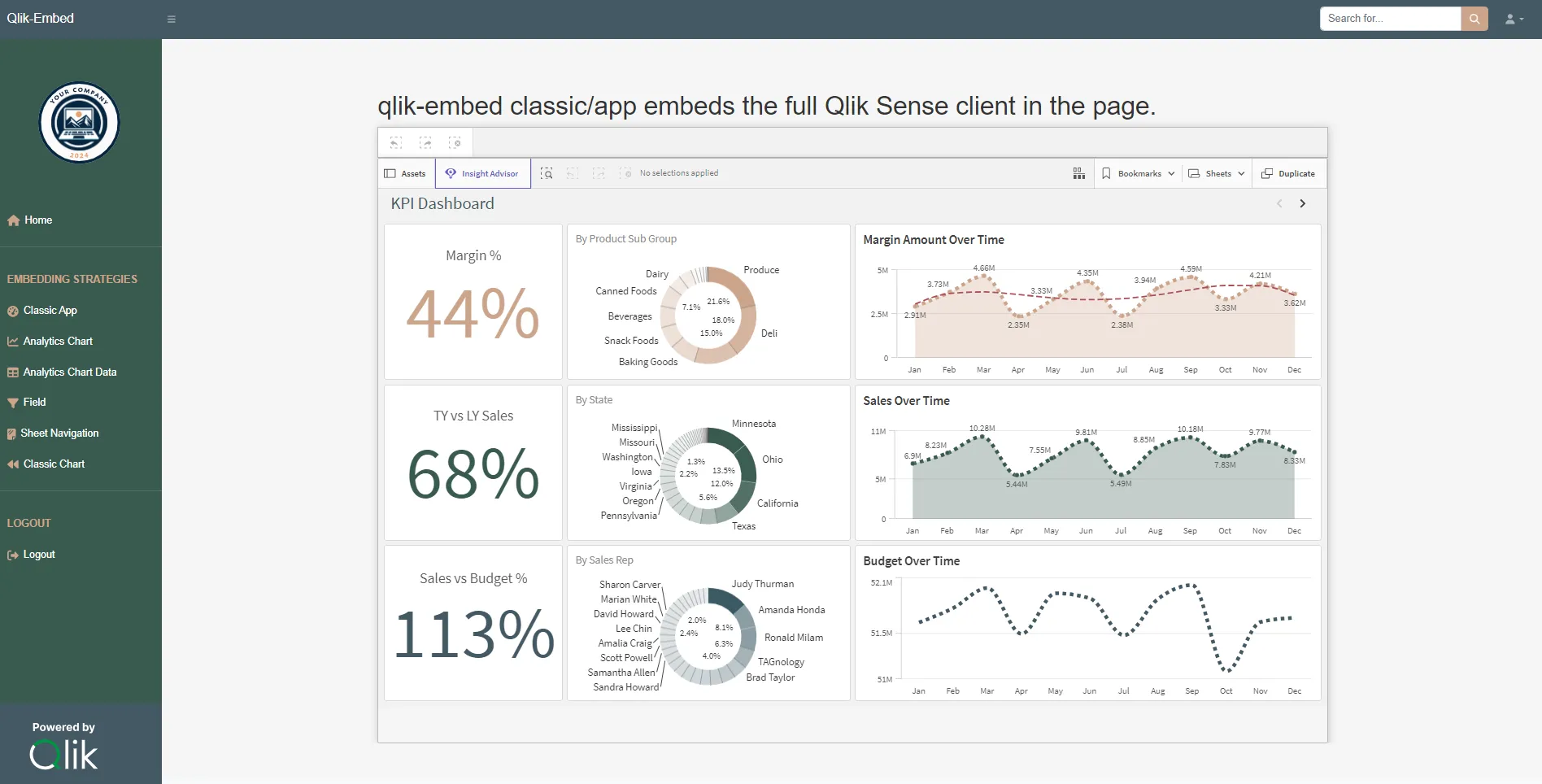
You should see your web app running locally with embedded Qlik Sense analytics rendered using various qlik-embed techniques.
Troubleshooting
- If the app does not load, verify the environment variable values configured in step 4 and review any error messages in the terminal.
- If you get authorization errors, verify the scopes configured for your OAuth M2M clients.
Optional: provision users with custom groups
The example project creates Qlik Cloud users but doesn’t assign them to custom groups. You can extend its backend to ensure that a user belongs to a custom group before requesting an impersonation token.
These changes are not included in the project repository.
Before you start
- In Qlik Cloud, create a custom group named
Consumerand configure its tenant roles and space permissions for the embedded app. See Manage users with groups for how to configure the group. The provisioning helper can create a missing group, but a newly created group has no roles or space permissions, so its members won’t automatically get access to the app. - Check the project’s two OAuth clients. The backend client (
OAUTH_BACKEND_CLIENT_ID) is a regular M2M client and must allow bothadmin_classicanduser_default.BACKEND_USER_LOOKUP_SCOPEusesuser_default, andBACKEND_USER_CREATE_SCOPEuses"admin_classic user_default". The frontend client (OAUTH_FRONTEND_CLIENT_ID) must have M2M user impersonation enabled, Trusted consent, and theuser_defaultscope. Keep both client secrets on the backend.
Add the provisioning helpers to server.js
In the project’s server.js,
add groups as qlikGroups to the existing @qlik/api import:
import { auth as qlikAuth, users as qlikUsers, groups as qlikGroups, qix as openAppSession,} from "@qlik/api";Below BACKEND_USER_CREATE_SCOPE, add a configuration for the provisioning helpers. This reuses the project’s existing
backend M2M client; you don’t need another OAuth client:
const authAdmin = { ...configBackend, scope: BACKEND_USER_CREATE_SCOPE,};Copy both ensureGroupExists() and ensureUserHasGroup() from
Manage users & groups with OAuth impersonation into
server.js, outside the route handlers. Don’t copy the guide’s separate authAdmin, authUser, or example usage.
In the copied functions, change groups.getGroups to qlikGroups.getGroups, groups.createGroup to
qlikGroups.createGroup, and users.patchUser to qlikUsers.patchUser. The functions then use the project’s existing
backend configuration and @qlik/api imports.
Assign the group before serving the page
The GET / route looks up or creates the user and sets req.session.userId in either branch. After that if/else
block, and immediately before the existing return res.sendFile(...) statement, add:
const { data: user } = await qlikUsers.getUser(  req.session.userId,  {},  { hostConfig: authAdmin });
await ensureUserHasGroup(  req.session.userId,  "Consumer",  user.assignedGroups ?? []);
The separate POST /access-token route doesn’t need to change. It uses req.session.userId to request the impersonated
user’s token after GET / has completed the provisioning step. The helper appends the custom group’s ID without
replacing the user’s existing group memberships.
Check the result
Run the web app and sign in with a test user. In Qlik Cloud, verify that the user exists and belongs to the Consumer
custom group. Visit the app again to check that provisioning doesn’t add a duplicate membership. Then check that the
user can open the embedded app through the group’s configured roles and space permissions.
If the group assignment succeeds but the app is inaccessible, check those permissions; a group membership alone doesn’t grant content access.
This is an optional extension to an evaluation project, not a production-ready identity flow. The project’s email-based login doesn’t verify the caller’s identity. A production OEM backend must authenticate users before provisioning them and must restrict access to its administrative OAuth credentials.
Next steps
Now that you have a working example, you can experiment with other qlik-embed parameters.